Senior Defender User Guide
Quick Start
Use the website to scan suspicious links or emails, then add the browser extension for faster checks.
- Open the home page and scan a link or email.
- Create an account to save scan history.
- Upgrade to Premium for advanced checks.
- Install the browser extension and add your API token.
Create an Account
Use the Create Account page to set up your profile.

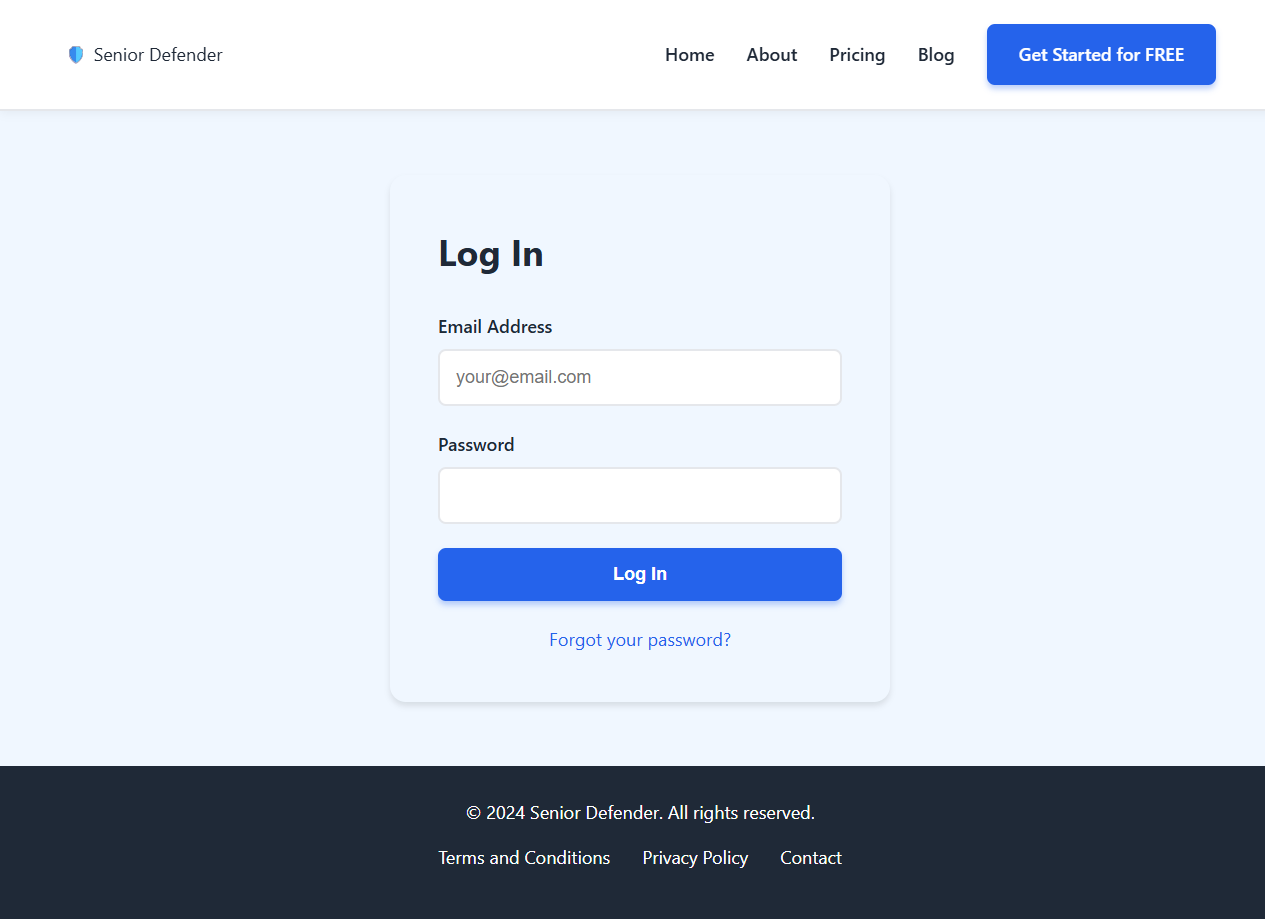
Log In
Use the login page if you already have an account.
Scan a Link or Email
Paste a link or email and click Scan Now.
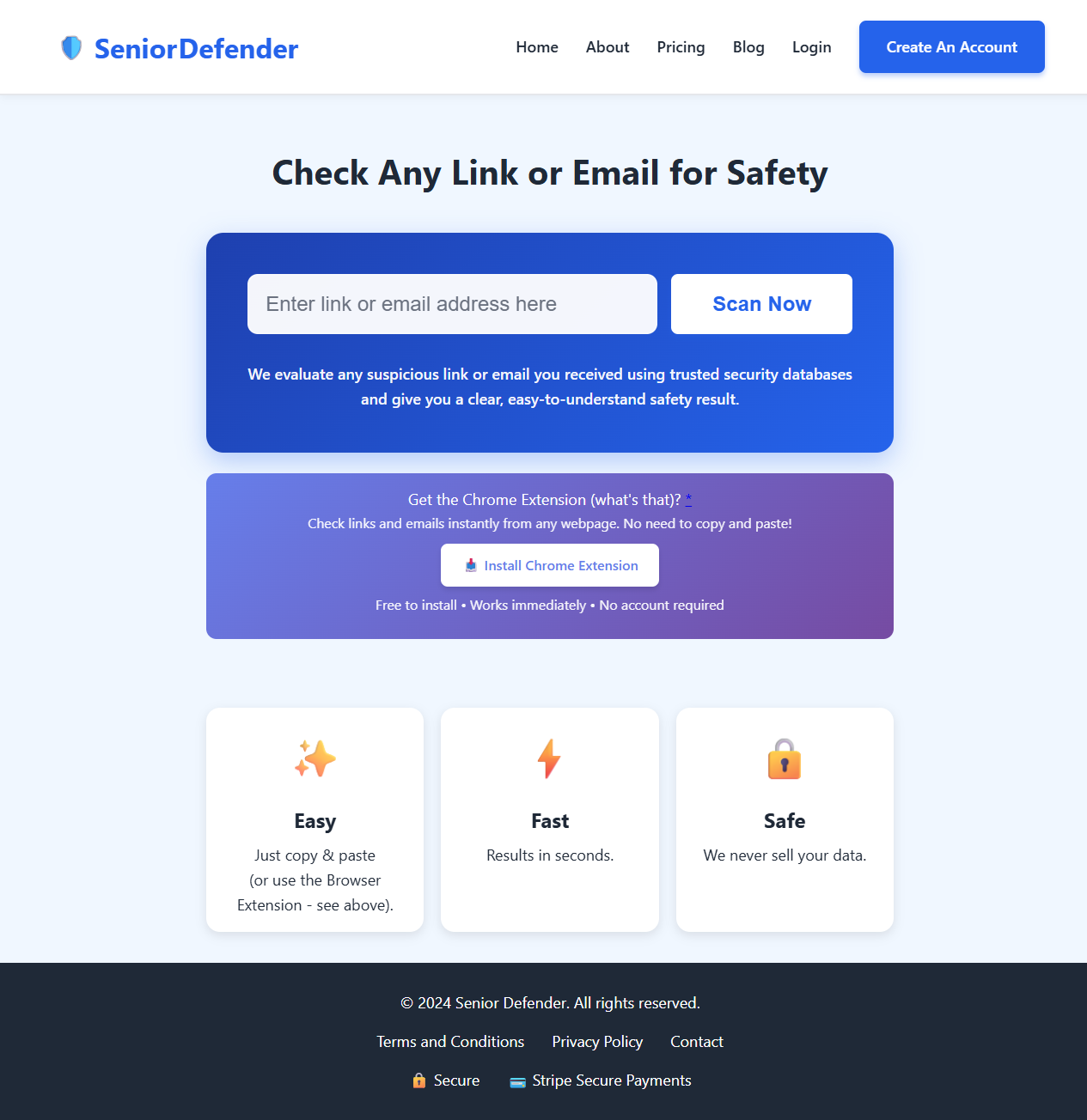
Tip: Use a full URL when possible (https://example.com).
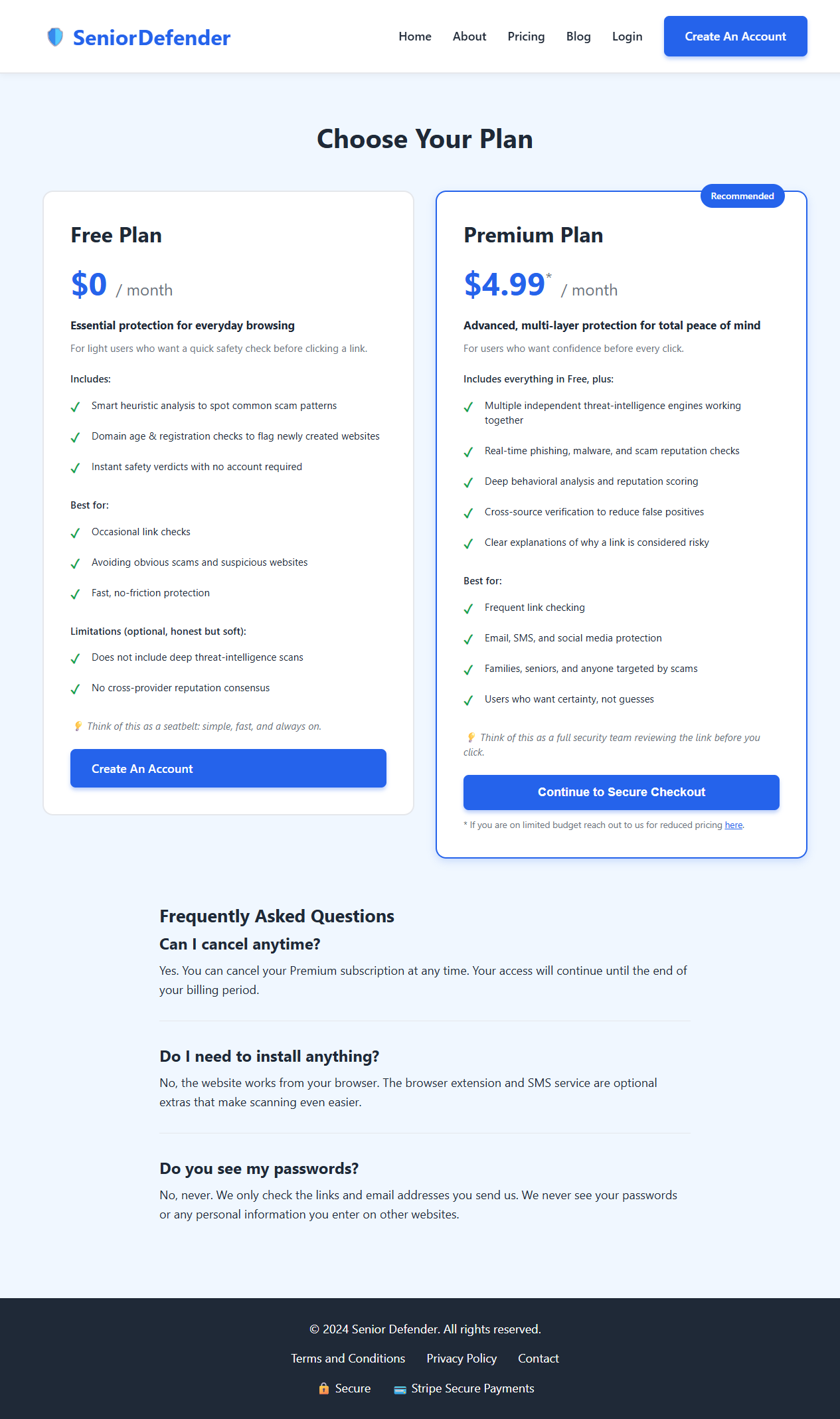
Plans and Upgrade Flow
Review plan details on the Pricing page and select Premium when ready.
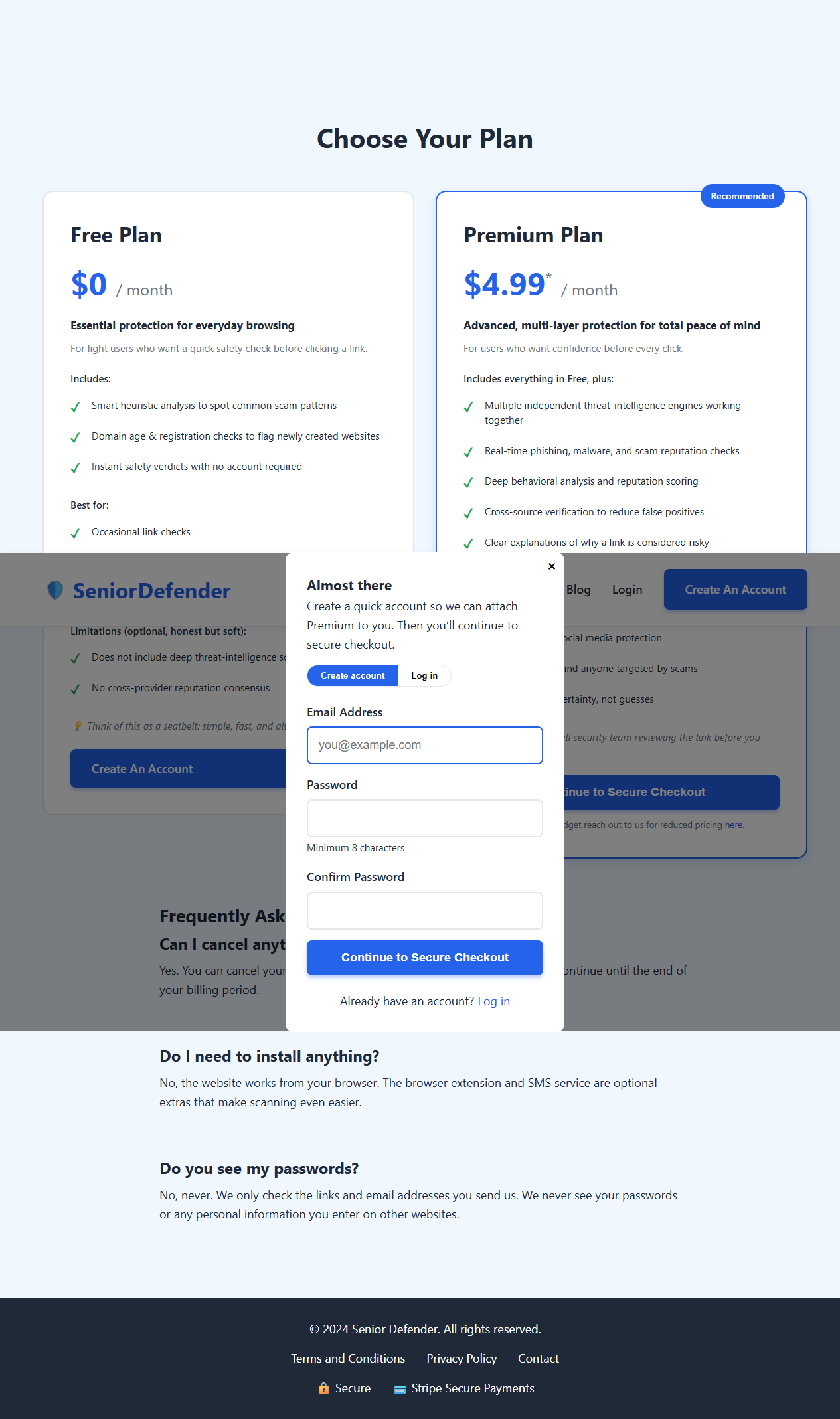
If you are not logged in, you will see a short account step before checkout.
Dashboard Overview
Your dashboard shows scan history and premium tools.
- Review past scans and results.
- Generate your API token (Premium users).
- Manage your plan status.
Browser Extension Setup
Install the extension, then open Settings and paste your API token.
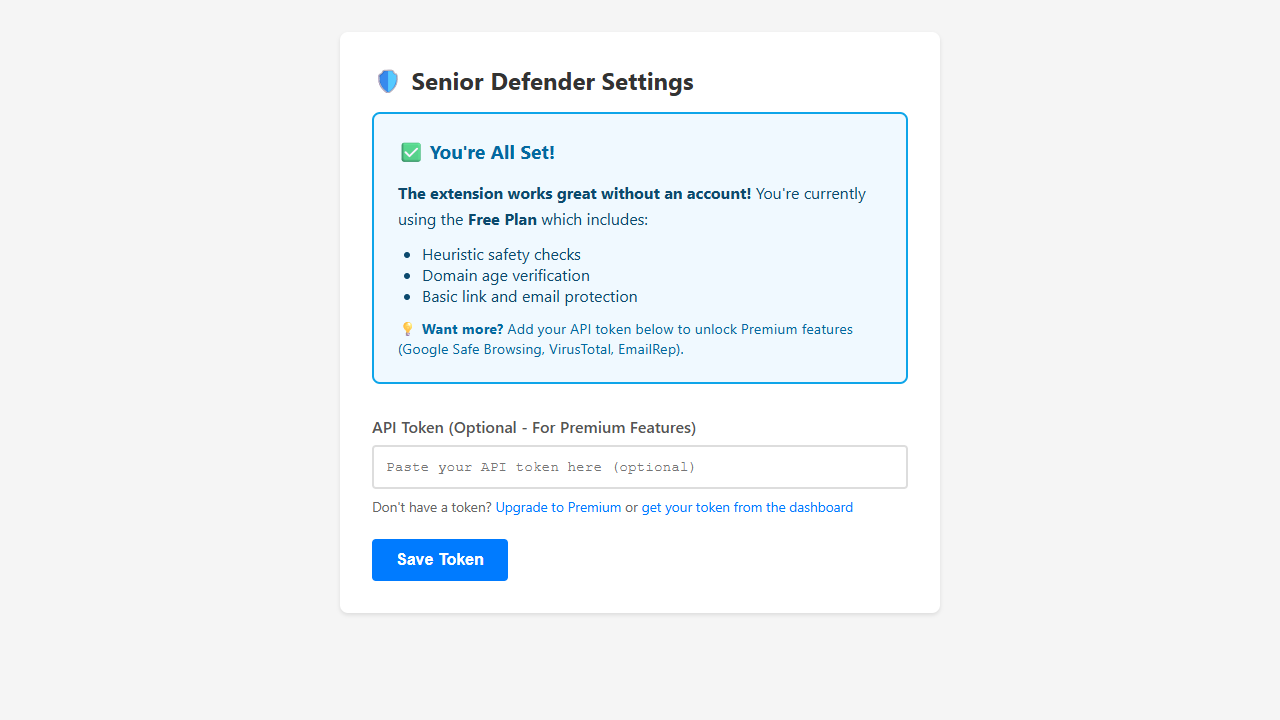
Where to get your token: Dashboard → Generate API Token → Copy.
Use the Extension Popup
Open the extension popup to scan quickly.
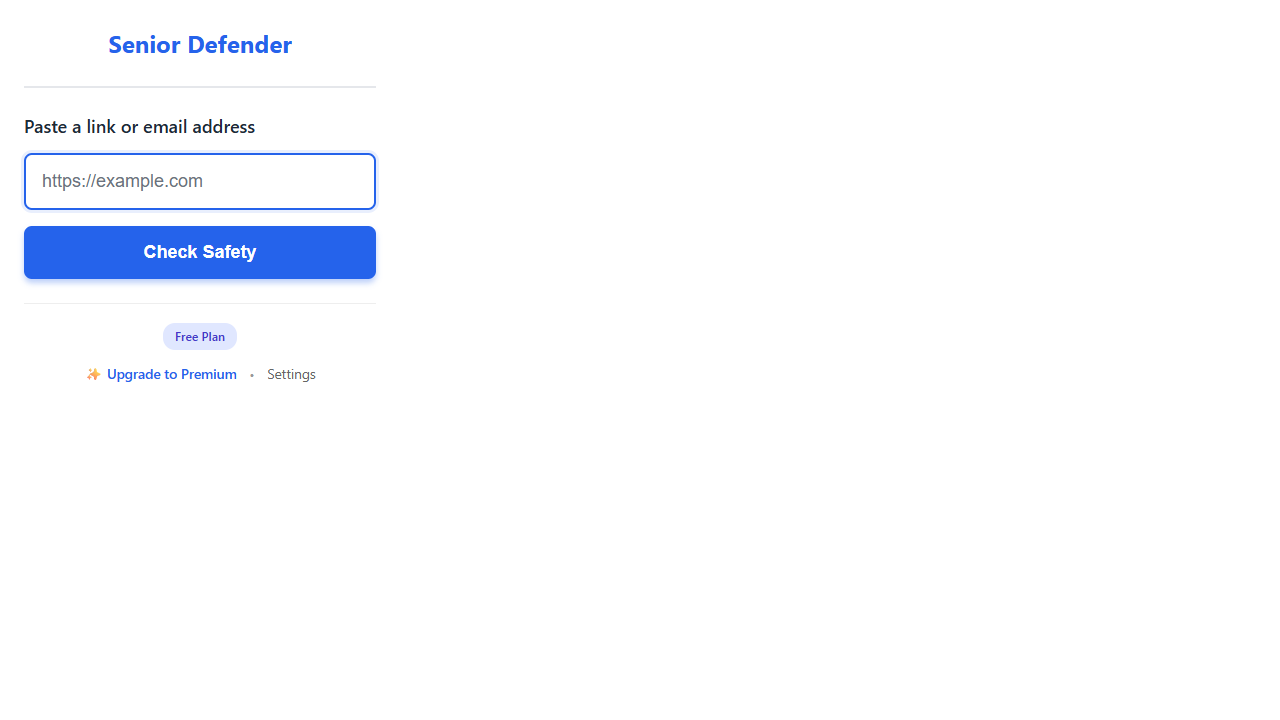
You can also right‑click a link or selected text and choose Check with Senior Defender.
Safety Tips
- Be cautious with shortened links and unknown senders.
- If a result is Caution, verify with another trusted source.
- If a result is Dangerous, avoid clicking and report it.
FAQ
I paid but I’m not Premium yet. Premium is activated by Stripe webhooks and may take a short time.
My API token says invalid. Make sure you copied the full token. Generate a new one if needed.
I canceled checkout. No charges were made. You can try again from the Pricing page.